
AI Search
AI Search replaces keyword-based library search with a conversational interface. Instead of guessing the right search term, you describe what you want to read — and the AI finds matching books from the library catalog.
How It Works
Section titled “How It Works”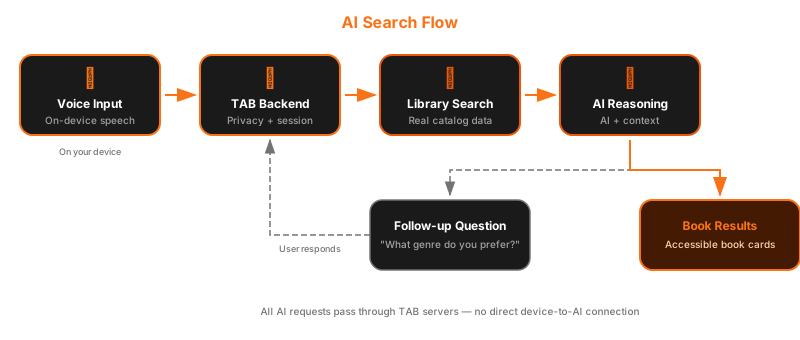
- Open the Library tab and tap the AI Search button
- Speak or type your request — describe what you want to read
- The AI may ask follow-up questions — to narrow down your preferences
- Book results appear as accessible cards with title, author, and format
- Tap any result to view the book detail page
AI Search chat interface — conversation with book result cards
Example Conversations
Section titled “Example Conversations”You: “I want a Thai book about real life, something documentary-style, with audio.”
AI: “Would you prefer a memoir, investigative journalism, or travel writing?”
You: “Memoir.”
AI: Returns 5 matching books with title, author, and format details.
You: “Find me a short English fiction book I can finish in one sitting.”
AI: Returns short story collections and novellas from the ABC Global Book Service.
What Makes It Different from Regular Search
Section titled “What Makes It Different from Regular Search”| Regular Search | AI Search |
|---|---|
| Requires exact keywords | Understands natural descriptions |
| Returns literal matches | Understands intent and context |
| Single query, single result set | Multi-turn conversation with follow-ups |
| No format awareness | Can filter by audio, text, Braille, language |
Voice Input
Section titled “Voice Input”AI Search uses on-device speech recognition (Apple Speech Recognition on iOS). Your voice is transcribed locally — no audio is sent to any server. The transcribed text is then sent to the AI backend for processing.
Supported languages for voice input depend on your device’s speech recognition capabilities.
Search Results
Section titled “Search Results”Results appear as accessible cards. Each card includes:
- Book title
- Author
- Available format (Audio, Text, Braille)
- Brief description
VoiceOver announces each card with full details. Swipe to navigate between results.
VoiceOver Shortcuts
Section titled “VoiceOver Shortcuts”| Gesture | Action |
|---|---|
| Magic Tap (two-finger double-tap) | Start / Stop voice input |
| Escape (two-finger scrub) | Close AI Search |
| Swipe right | Navigate to next result card |
| Swipe left | Navigate to previous result card |
| Double tap | Open selected book detail |